
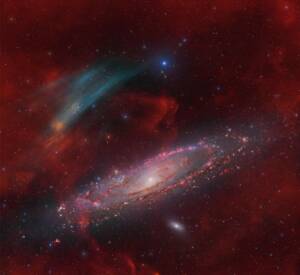
Discovery of the M31 [OIII] emission arc
Recently, a major discovery by an international team of amateur astronomers and scientists has become a huge online hit, and this new discovery is just located in one of the
New Features | Optimized & Fixed |
Telescope Network is now live No matter where you are, as long as your device is online, you can remotely connect to and control your ASIAIR, monitor device status, and track imaging progress in real time—making remote astrophotography easier and more flexible than ever. Redesigned Home Screen More Efficient Device Management: Device connection, switching, and disconnection have been consolidated on the Home screen, allowing you to manage your devices quickly without navigating between multiple pages. Imaging Status at a Glance: A new Imaging Status Card lets you monitor imaging progress, guiding status, and other key information in real time, so you can stay informed without entering the imaging page. Easier Network Configuration: Network settings are now accessible directly from the Home screen, making network management and configuration more intuitive and efficient. Hidden Network Support in Station Mode: Station Mode now supports connecting to hidden Wi-Fi networks, providing greater flexibility in complex network environments. | Optimized the star detection algorithm to improve consistency across platforms, delivering a more unified user experience. Added current-position verification when switching CAA to Rotation Mode, helping prevent cable wrap issues. |
⚠️ Important Prerequisites
1. iOS Device Requirements: iPhone and iPad system version ≥ 13; Mac computers require M1 or newer chips.
2. Full-Platform Firmware Update Notice: ASIAIR V3.0 involves major underlying firmware upgrades. A mandatory firmware update will be triggered upon entering the shooting page. Please reserve sufficient time for device updates in advance.
With internet access and an online device, you can remotely connect and control your ASIAIR across regions, manage device status, and monitor shooting progress in real time anytime, anywhere.
General Operation Process
1. Power on your ASIAIR / Smart Camera;
2. Bind your device to the Telescope Network following the on-page instructions;
3. Navigate to the Device Connection page and select Remote Device at the top;
4. Select the target device from the list and tap the connect button to complete remote connection;
5. Return to the homepage to view real-time device status and perform remote operations.
Detailed Operation Steps
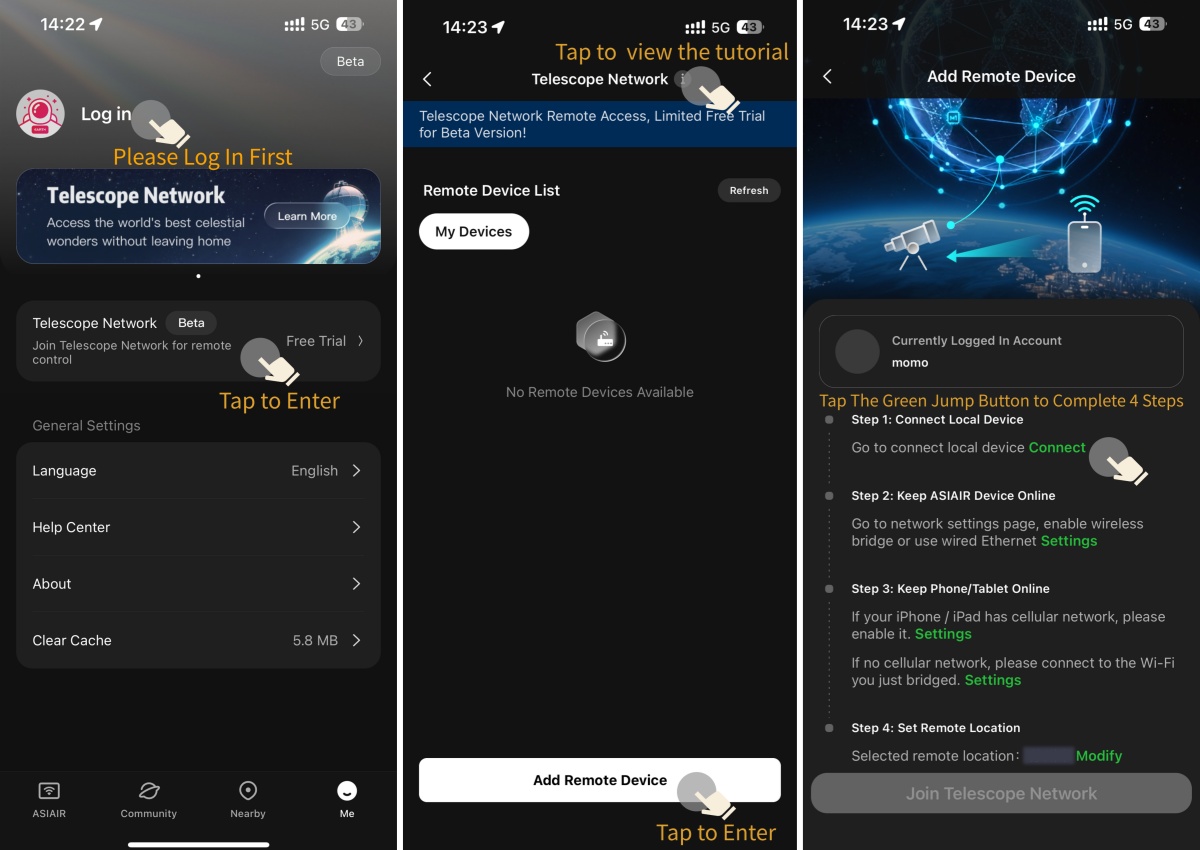
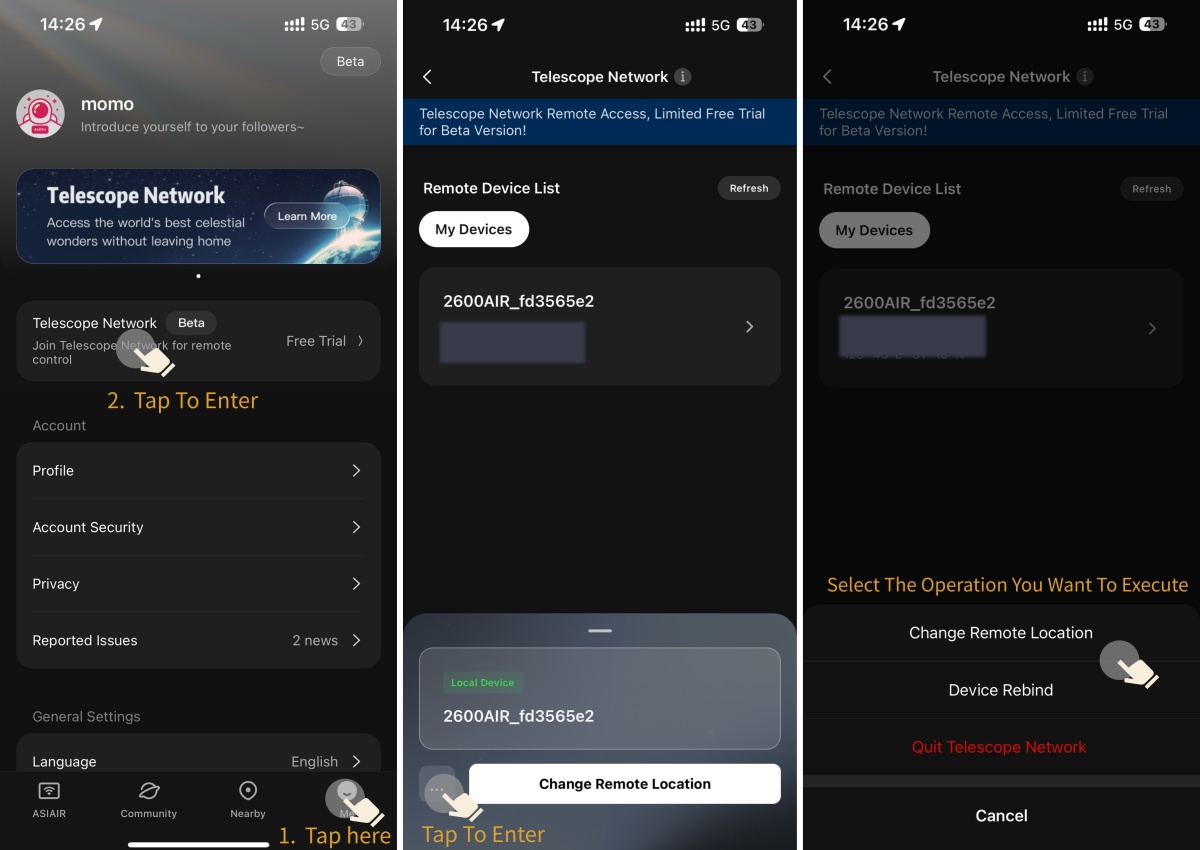
a. Join Telescope Network
Operation Guideline: Bind Device to Telescope Network
Notes:
1. Both ASIAIR device and mobile/tablet must be connected to the network for Telescope Network functions.
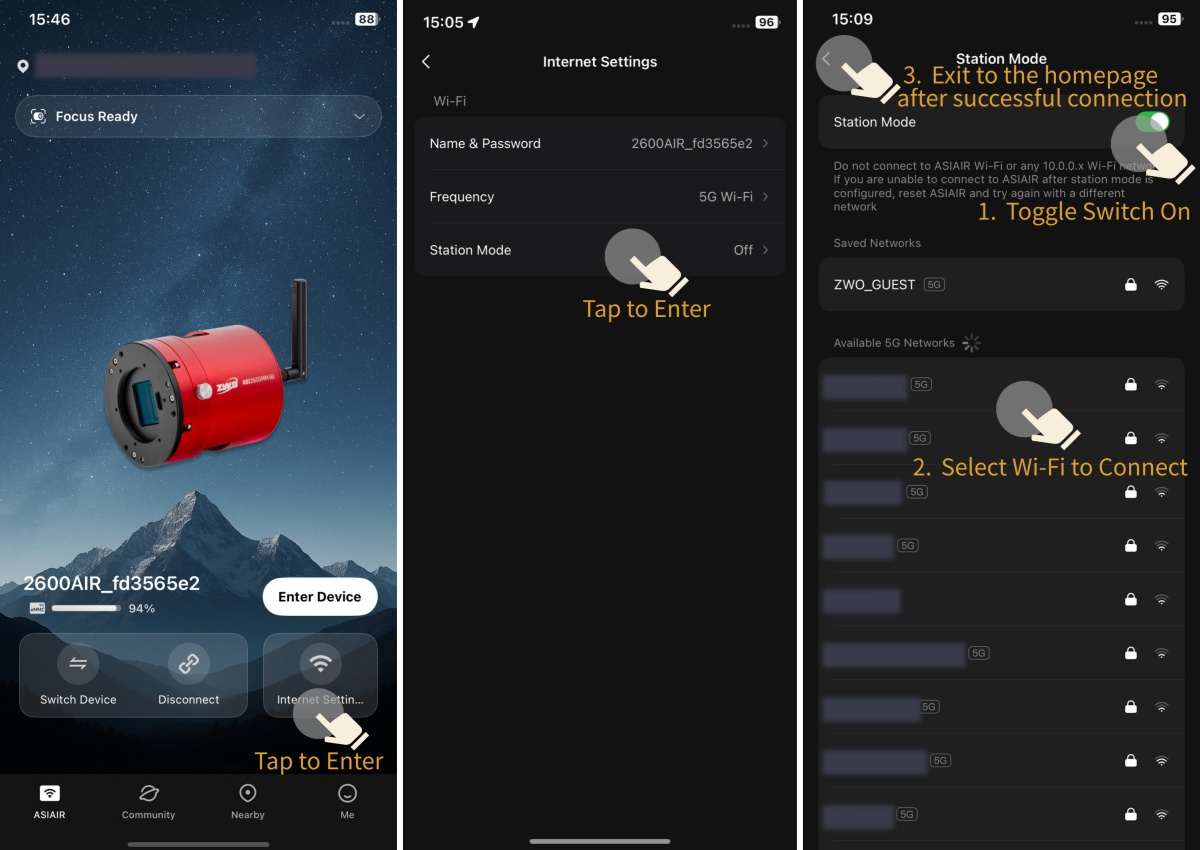
2. It is recommended to locally connect the device first and enable Station Mode to connect to external Wi-Fi before binding. Manual step-by-step configuration is also available without prior Station Mode setup.
3. The bound device will be linked to the current logged-in account.
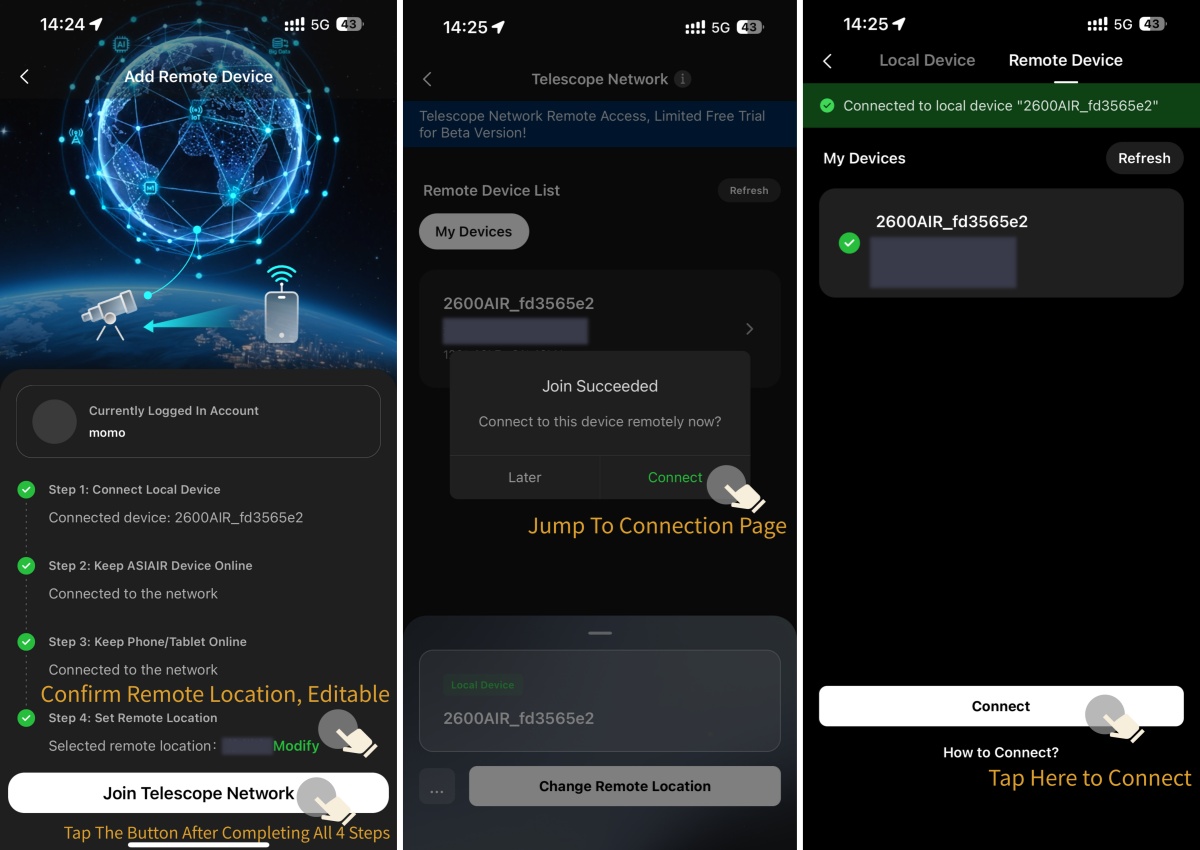
b. Connect Remote Devices
Operation Guideline: Connect Telescope Network Devices
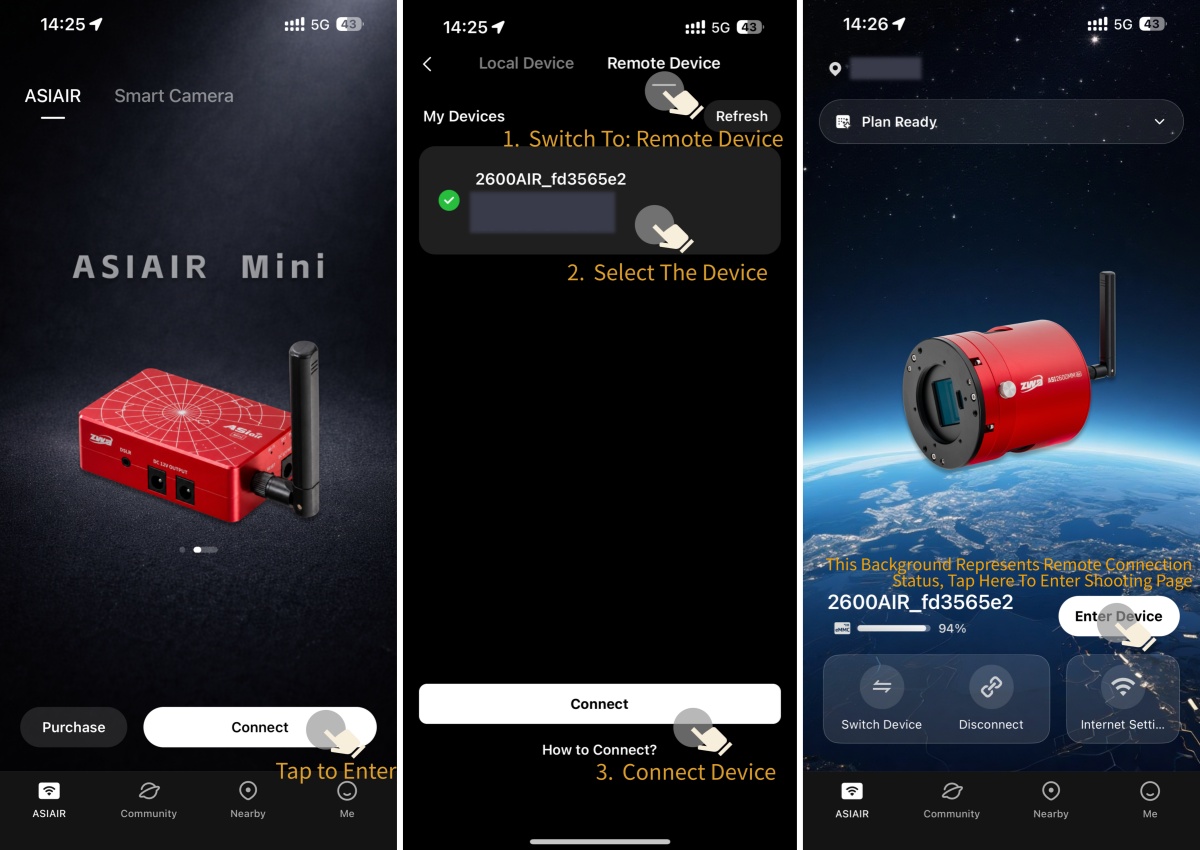
c. Manage Remote Devices
1. Change Remote Location: Modify the remote location timely if the device is moved to a new observation site to ensure normal shooting functions.
2. Device Rebind: Bind the device to your current logged-in account and unbind it from the previous account.
3. Quit Telescope Network: Remove the device from the Telescope Network as needed.
Operation Guideline: Change Remote Location / Device Rebind / Quit Telescope Network
Prerequisites:
1. Complete local device connection;
2. Enable Station Mode to connect to external Wi-Fi;
3. Ensure your mobile/tablet has stable network access.
Please follow the steps in the figure below.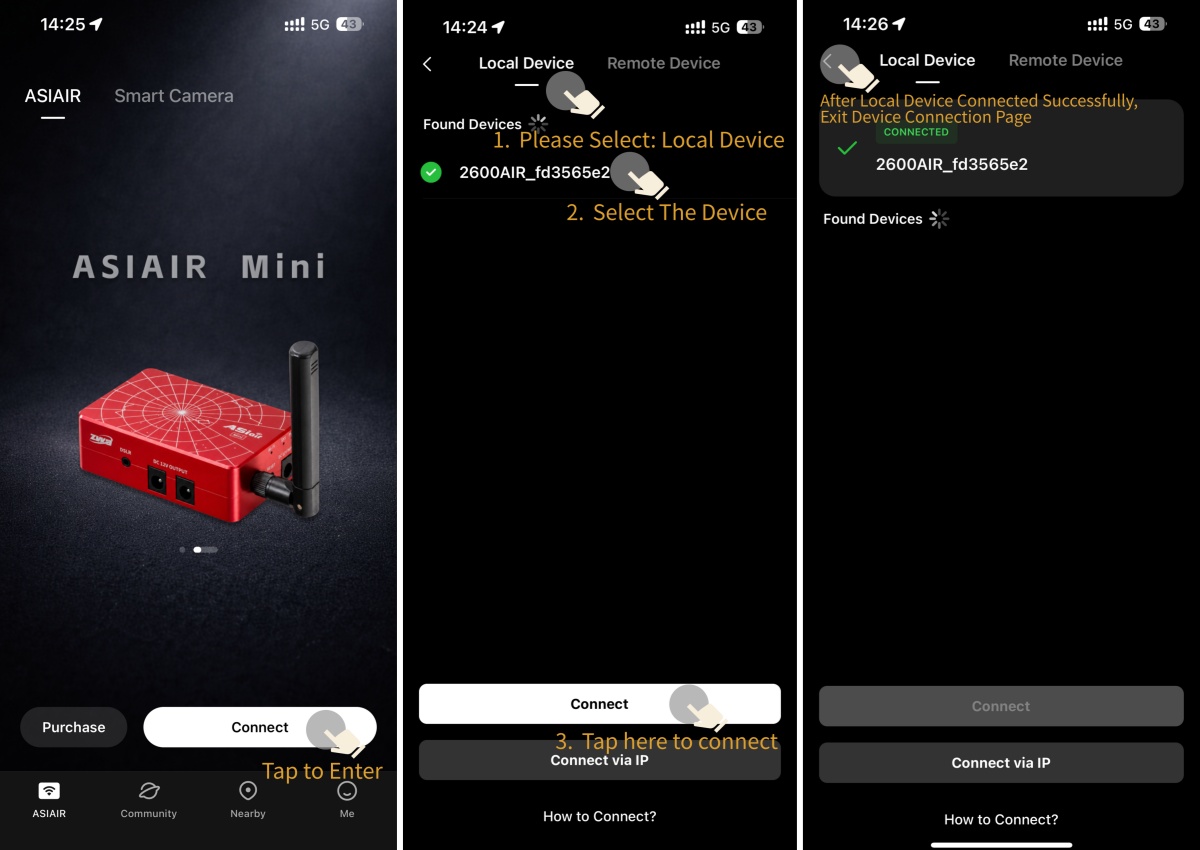
d. Manage My Devices
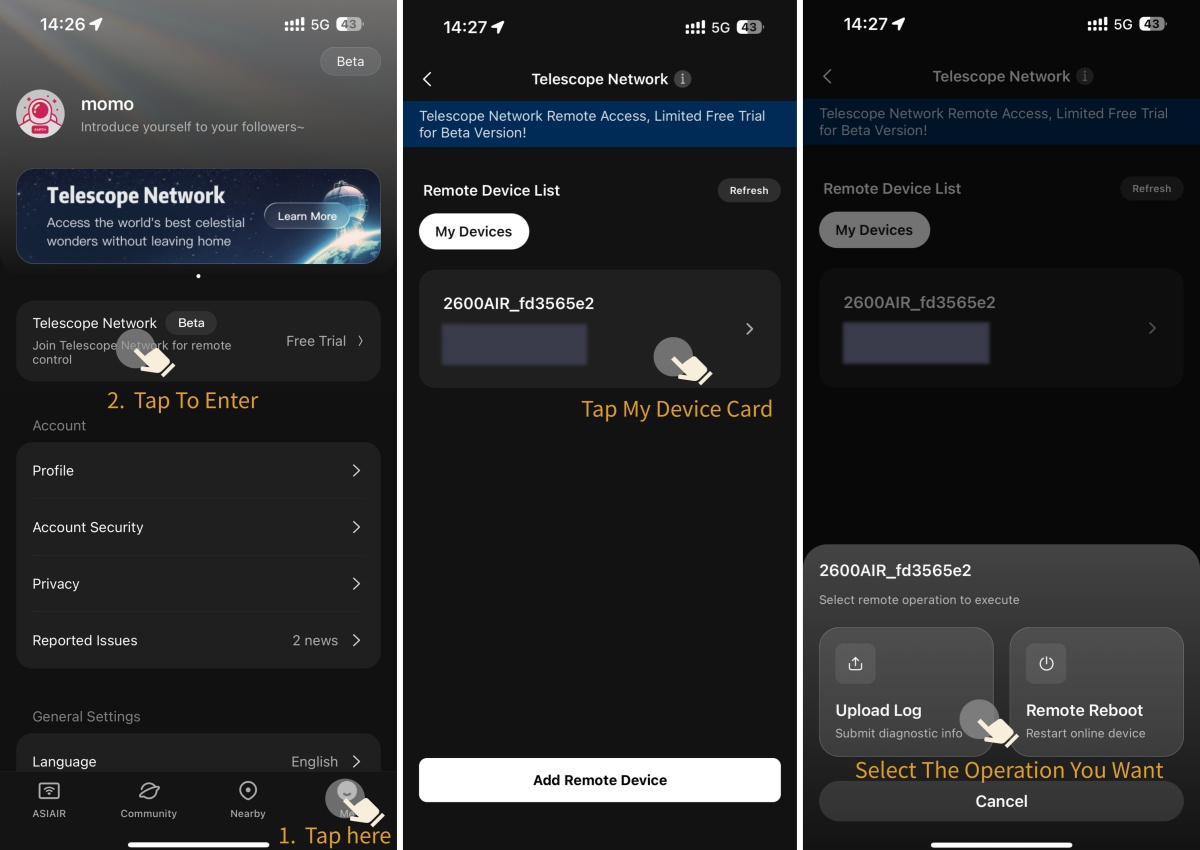
If the remote device is abnormal, offline or inaccessible to the shooting page, you can upload logs and restart the device remotely on the Telescope Network page.
If you can normally access the shooting page on your mobile/tablet, please use log upload and device restart operations on the shooting page instead.
Operation Guideline: Upload Logs & Remote Reboot for Inaccessible Remote Devices
Prerequisite: Ensure your mobile/tablet is connected to the network.
Note: The device will take a few minutes to go online after remote reboot.
Operation Guideline: Upload Logs & Remote Restart for Accessible Remote Devices
Prerequisite: Ensure your mobile/tablet is connected to the network.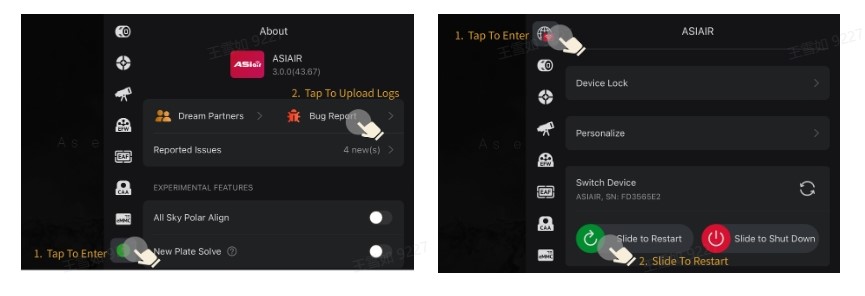
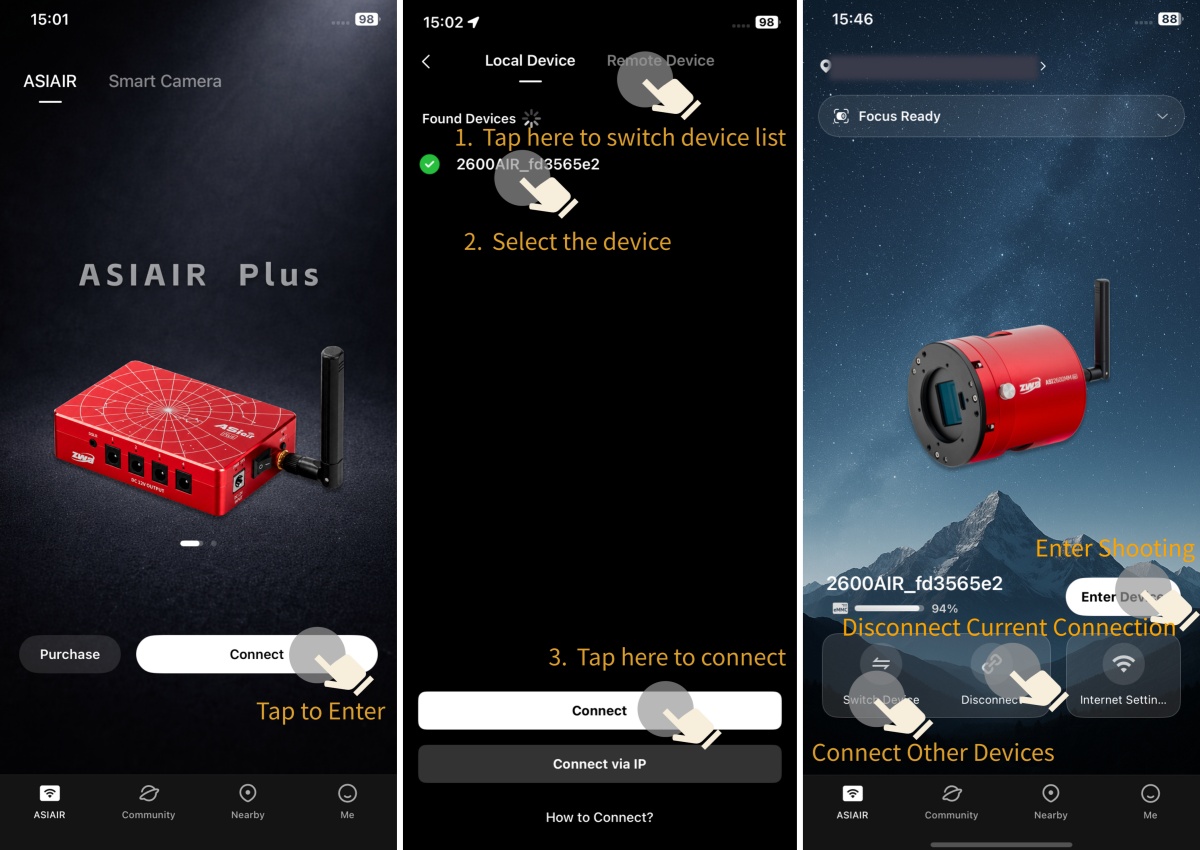
a. Optimized Device Management
The Connect, Switch Device, and Disconnect buttons are all placed on the homepage for one-stop device management with no extra page switching.
Operation Guideline: Connect Device / Switch Device / Disconnect Device / Enter Shooting Page
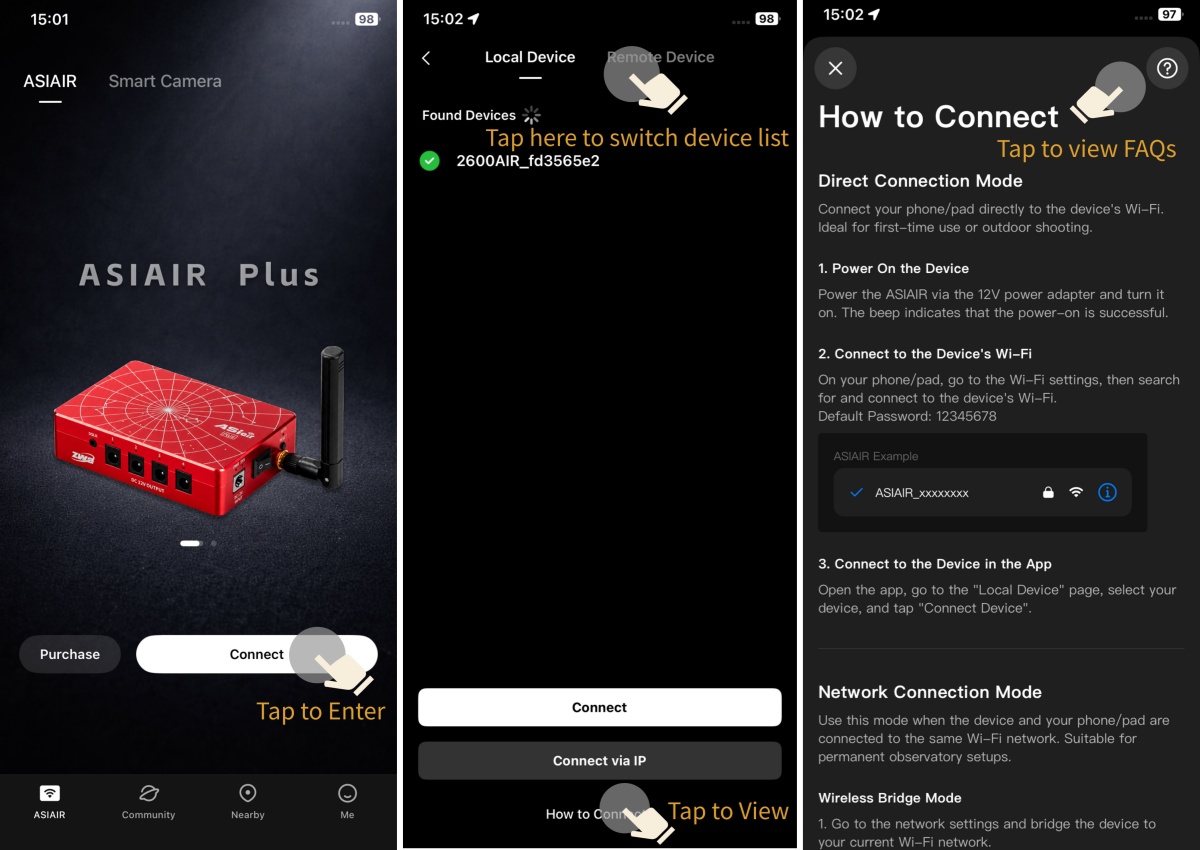
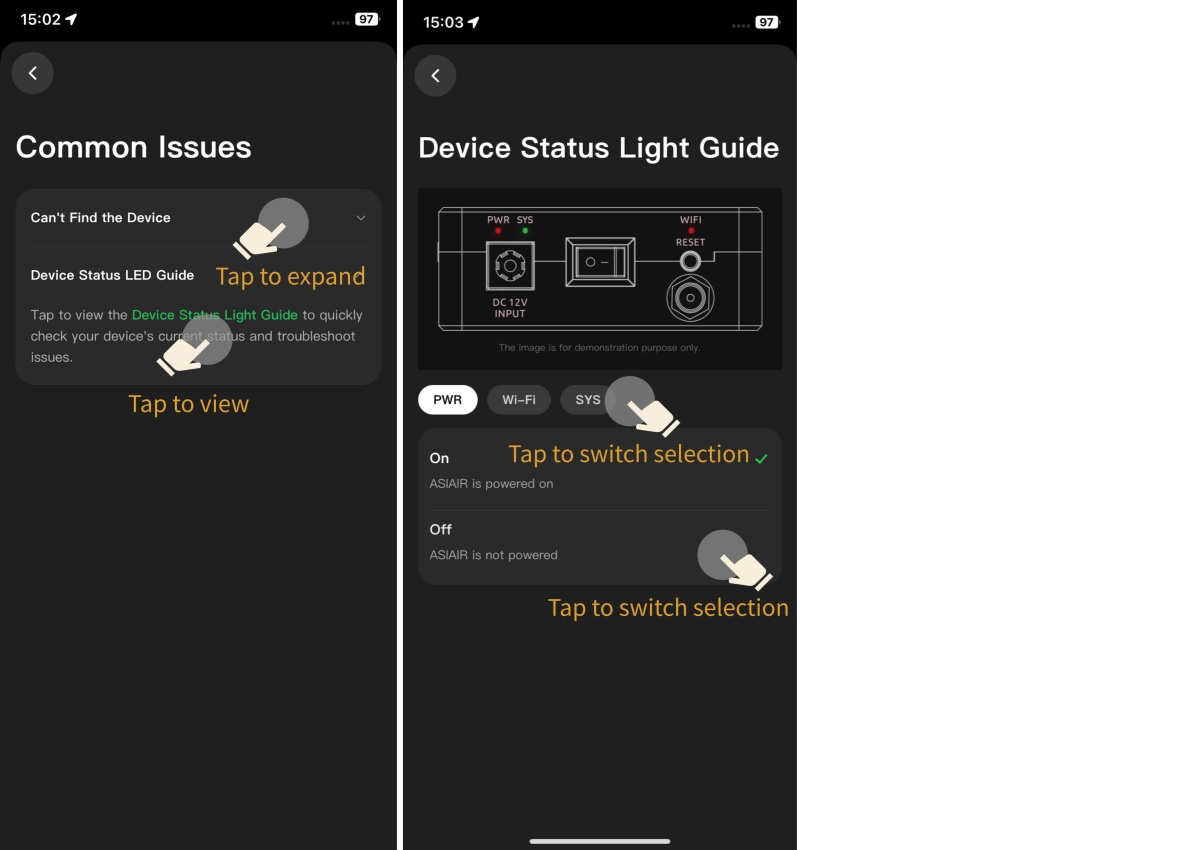
Operation Guideline: View Detailed Device Connection Tutorials In-App
b. New Shooting Status Card
Users can view real-time shooting progress, key task information and guiding status directly on the homepage without entering the shooting page.
Operation Guideline: View Shooting Status Card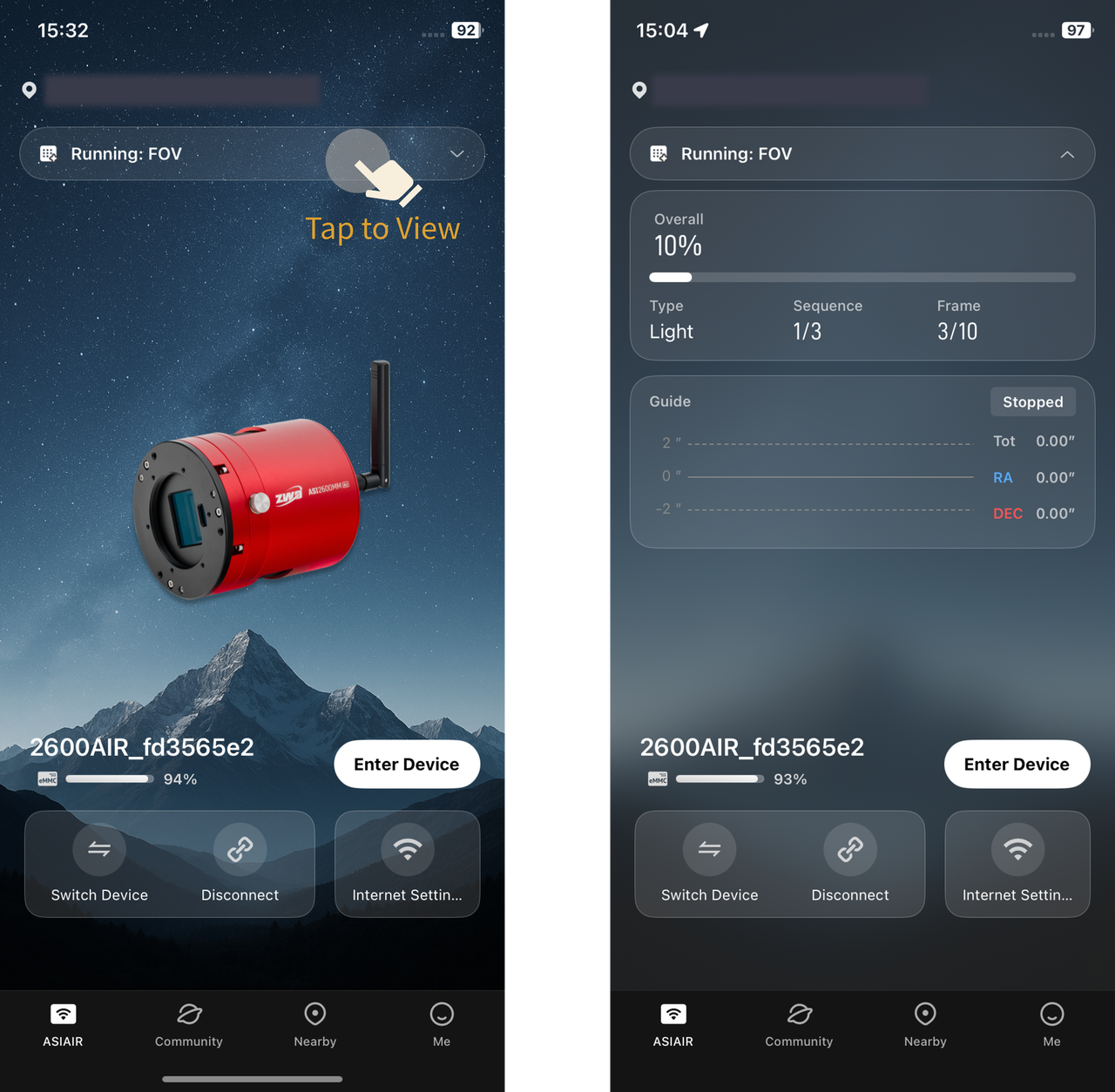
c. Streamlined Network Settings
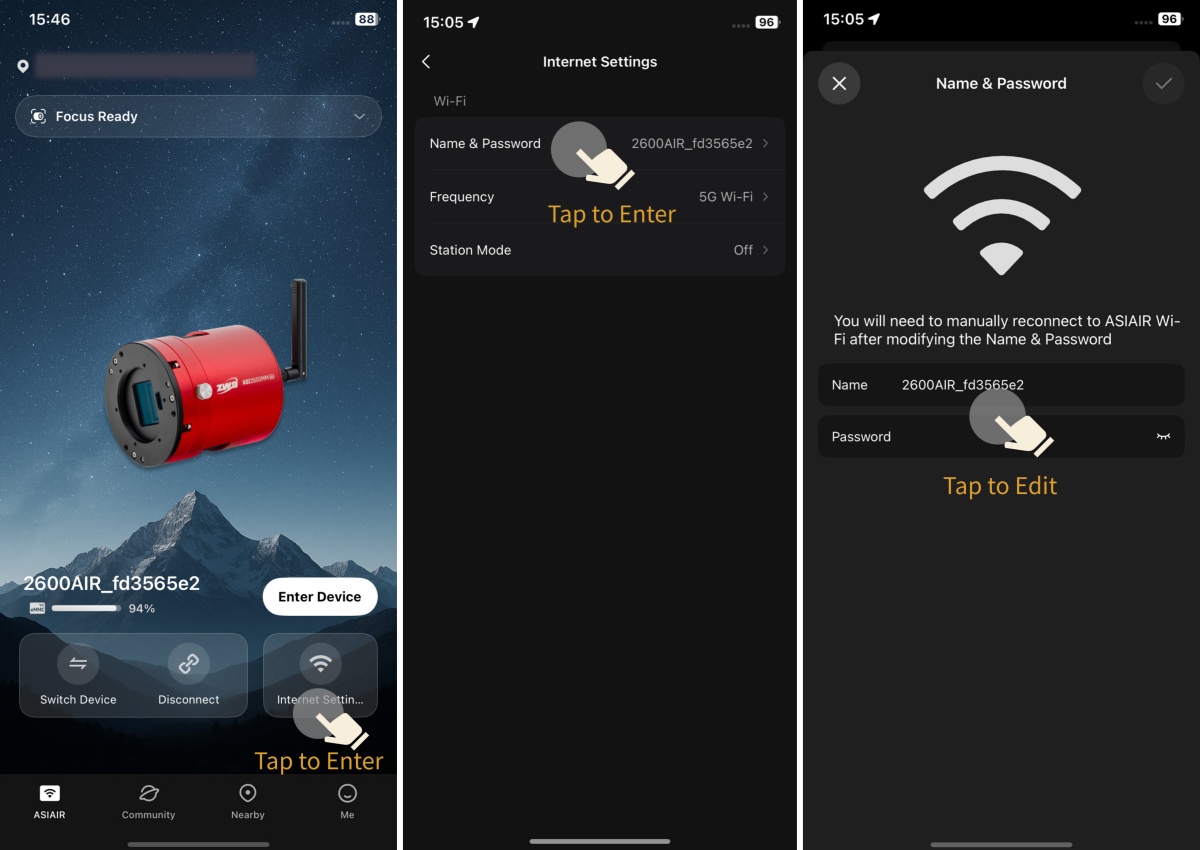
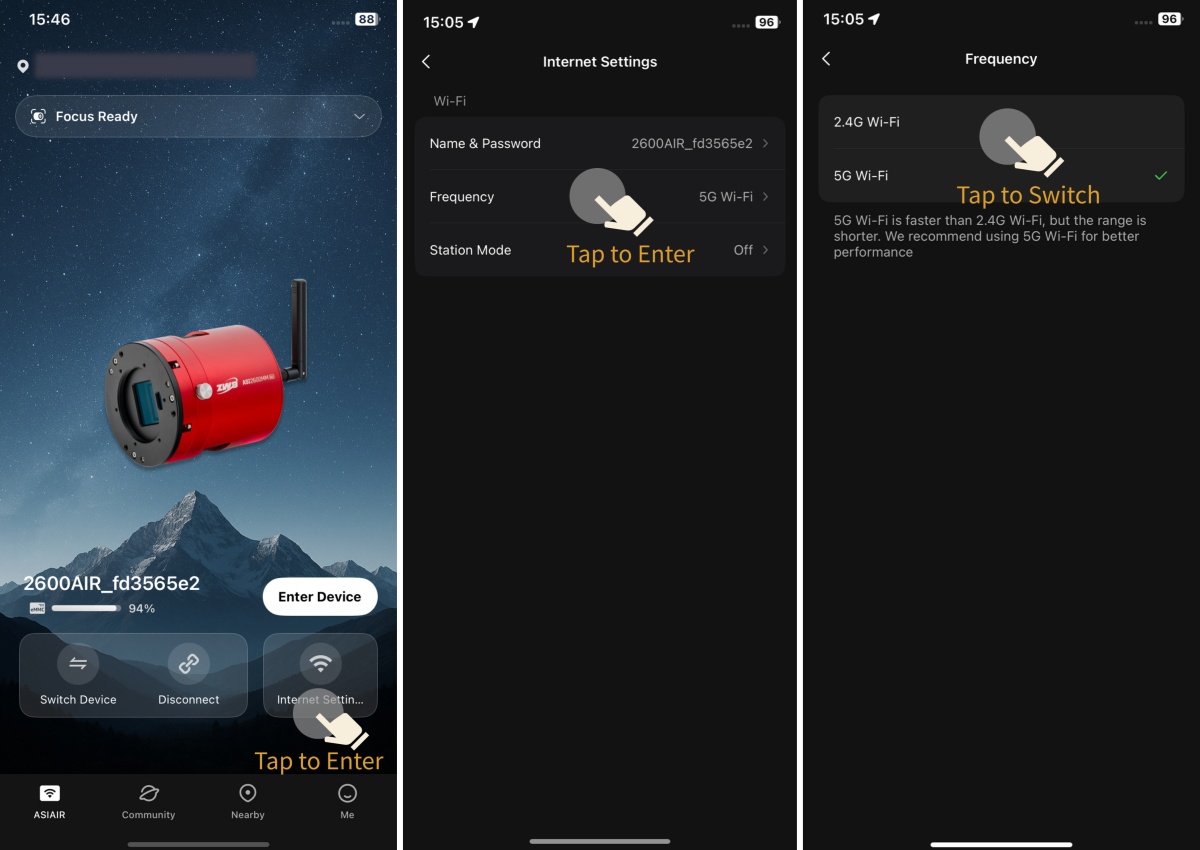
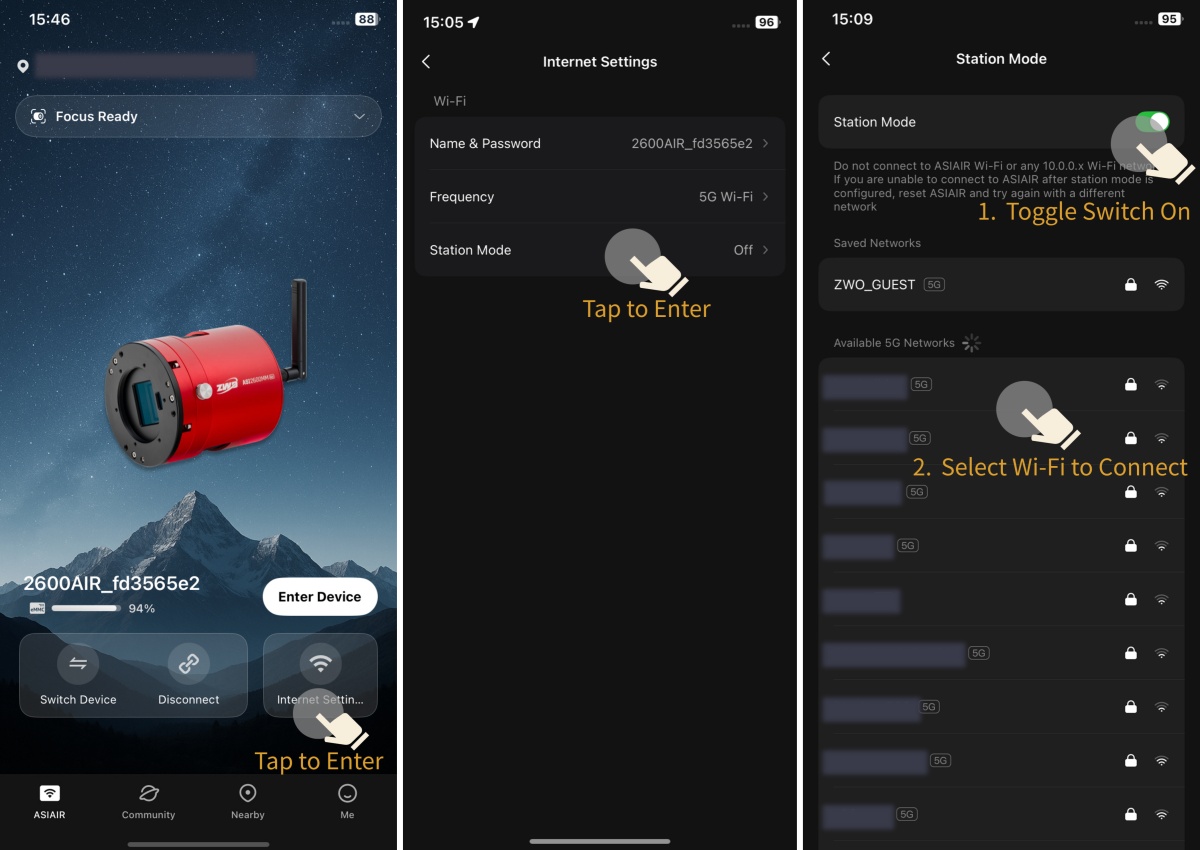
The network settings entrance is moved to the homepage, supporting quick viewing and modification of all Wi-Fi configurations.
Operation Guideline: Modify Wi-Fi Name & Password
Operation Guideline: Switch Network Frequency Band
Operation Guideline: Configure the Station Mode
Supported Models for 5G Frequency: ASIAIR Plus (RK Series), ASIAIR Mini, Full range of Smart Cameras. Other models only support 2.4G frequency.
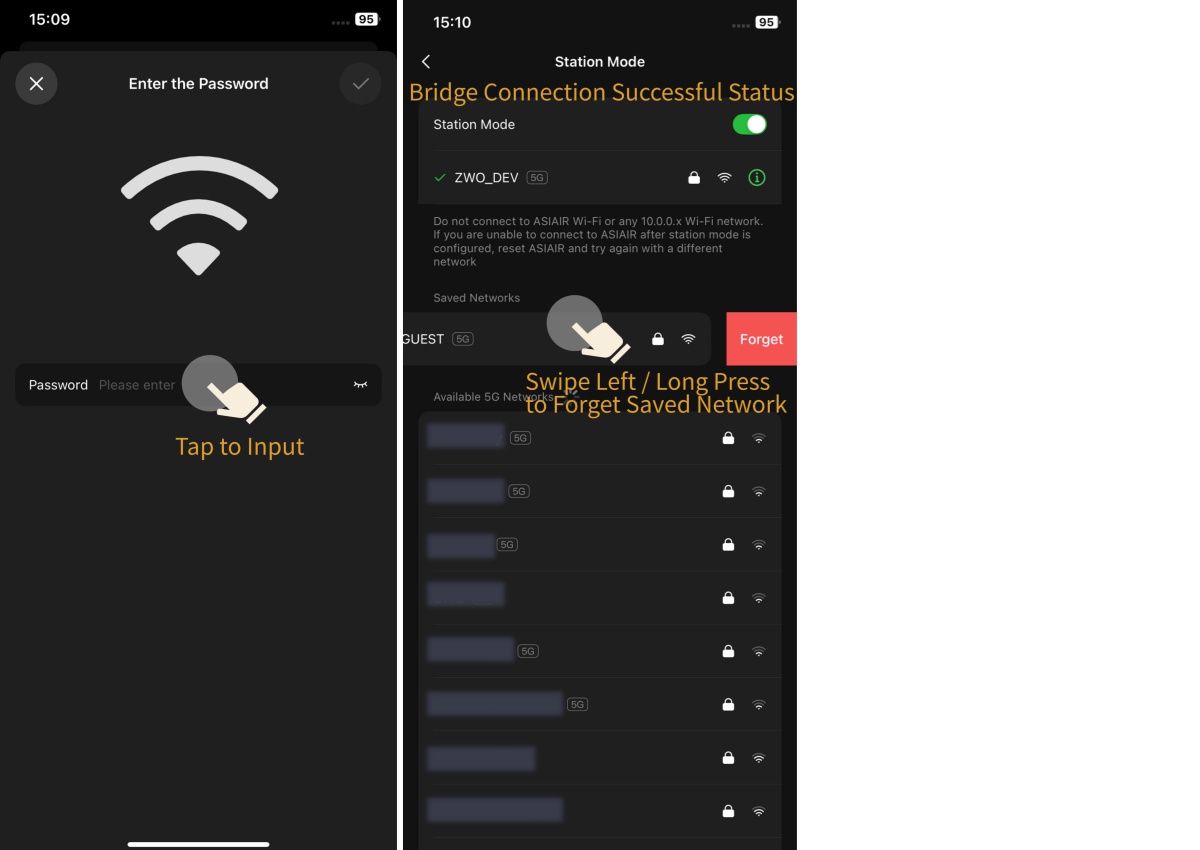
d. Station Mode supports hidden Wi-Fi networks.
Station Mode now supports connections to hidden Wi-Fi networks with non-broadcast SSIDs, catering to usage scenarios under more complex network environments.
Operation Guideline: Station Mode for Hidden Networks
Supported Models: ASIAIR Plus (RK Series), ASIAIR Mini, Full range of Smart Cameras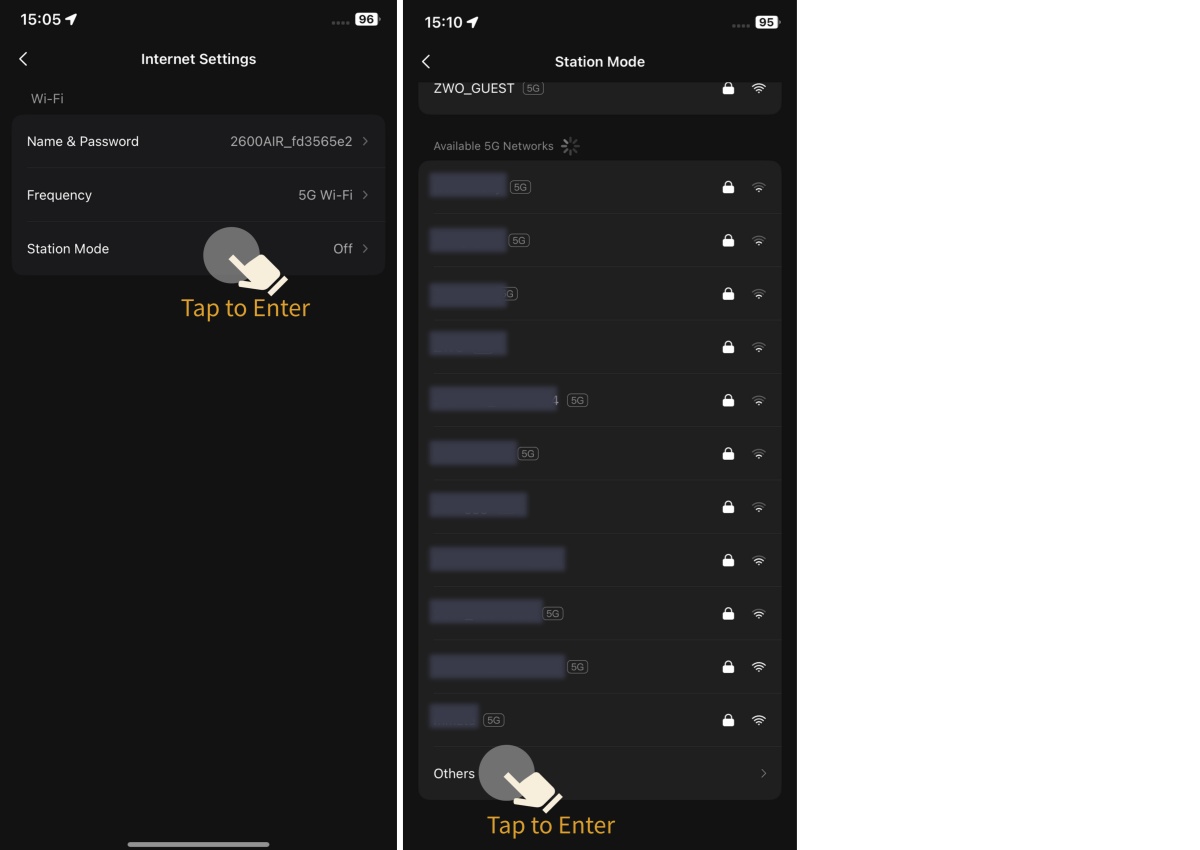
Recently, a major discovery by an international team of amateur astronomers and scientists has become a huge online hit, and this new discovery is just located in one of the
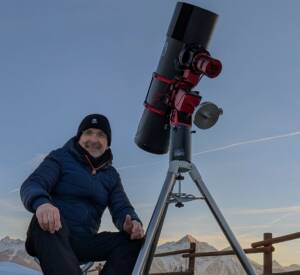
Hi, my name is Alessandro Cipolat Bares, I’m 72 years old , I live in Aosta, in the Aosta Valley, a mountainous region in the heart of the Western Alps.
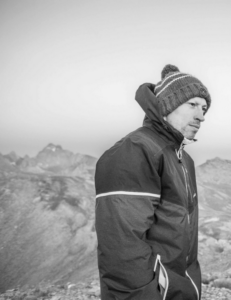
My name is Julien De Winter (@dwj85), and I live in Belgium. I am a Professor of Chemistry at the University of Mons, where my research focuses on mass spectrometry
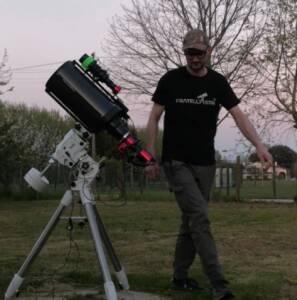
Hi! My name is Nicola Bugin and I live in a town in northern Italy called Borgoricco. I’m really happy that my photo of WR-134 has been so successful that
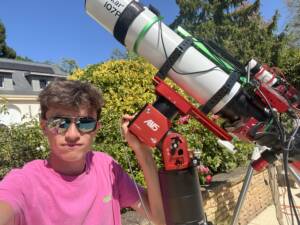
My name is Quentin (@_quentin_g), I am 17 years old, and I live in Nantes, in the west of France. I am currently in a French preparatory class for engineering
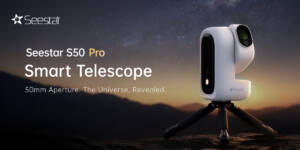
NEW PRODUCT LAUNCH Seestar S50 Pro Now Available: 50mm Aperture. Revealing More of the Universe 50mm Large Aperture · 4K Dual-Lens · One-Tap Post-Processing· Pro-Level Milky Way Shots · Up